RankOne

Parent Instructions
Instructions on How to Set Up a Parent Account in Rank One
Step 1: Visit the Rank One Parent Portal
- To begin, go to the Rank One Portal: https://www.rankone.com
- Then click on “Parents Click Here” in the top right corner

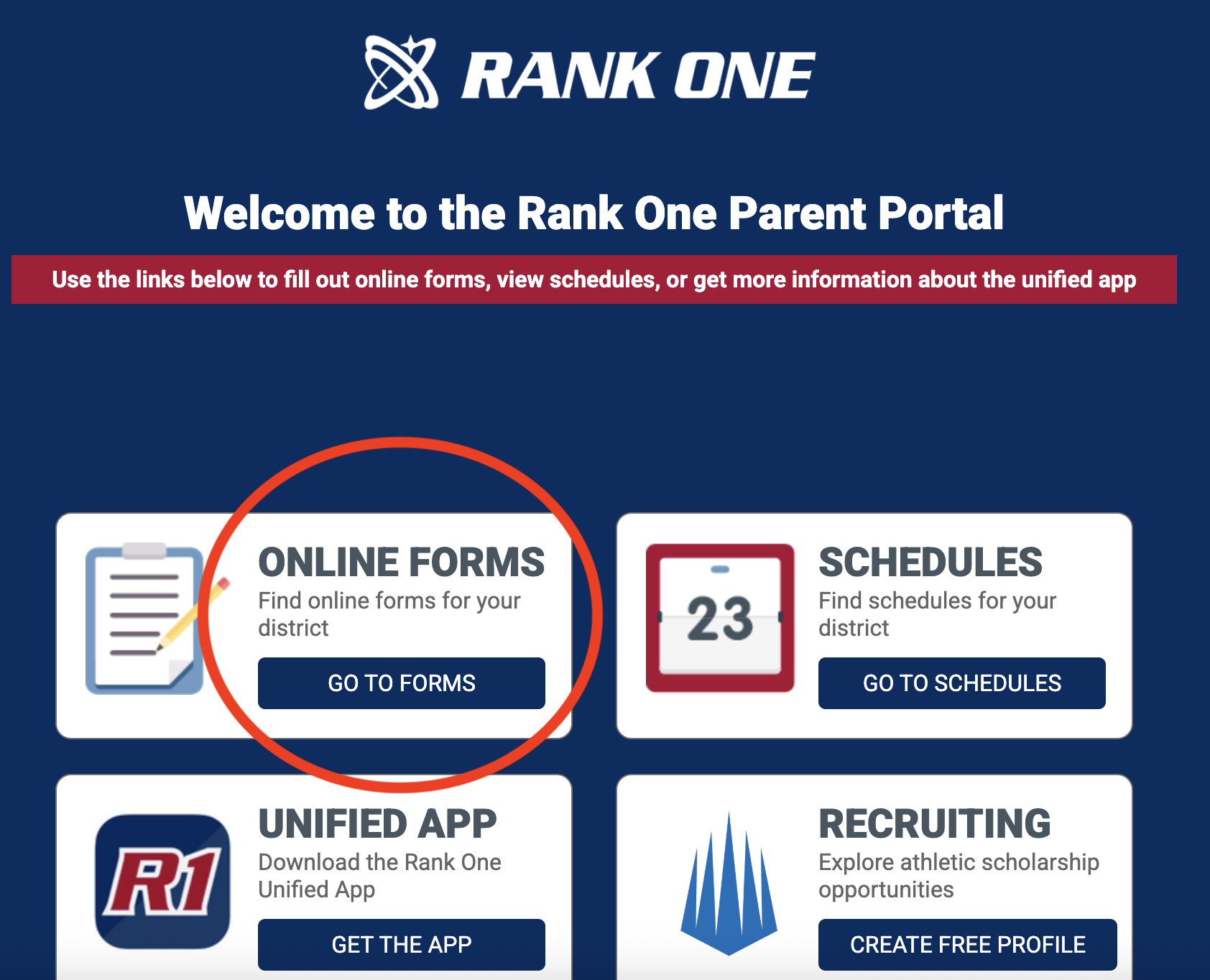
Step 2: Click Online Forms: Go to Forms Button
Step 3: Locate Your Child’s School
- You’ll need to search for your child’s school district.
- Select the state where the school is located (DELAWARE).
- Select your child’s school or school district from the drop-down list
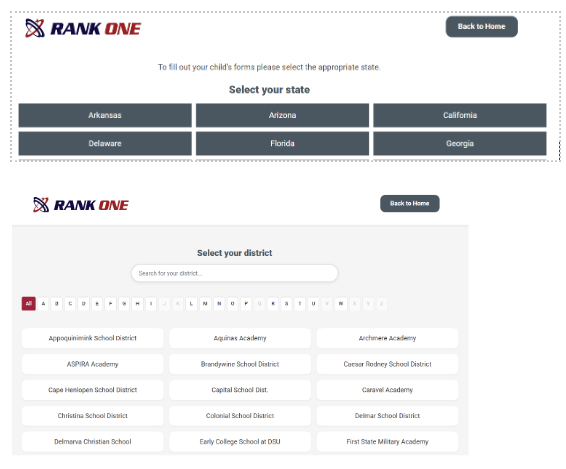
- Click “Proceed to Forms” and you will be prompted to create an account.
Step 4: Create a Parent Account
- Once you’re on the school’s page, Click “Create New Account” in the bottom

- Fill in the required information:
- First and last name
- Email address
- Create a secure password
- Agree to the terms of service and submit.
- You’ll receive a verification email.
- Click the link in that email to confirm your account.
Watch this short video to learn the basics of the Student Management Portal: Getting Started: Student Management Portal
Once logged in, you will be required to enter your Student’s First Name, Last Name and DOB (Date of Birth) to claim your student(s). You can claim multiple students within one account.
Step 1: Add Your Student(s)
- Log in to your RankOne Parent Account. If you need to create an account, please see instructions above.
- Log in and navigate to the “My Students” section.
- Click “Add New Student Profile”.
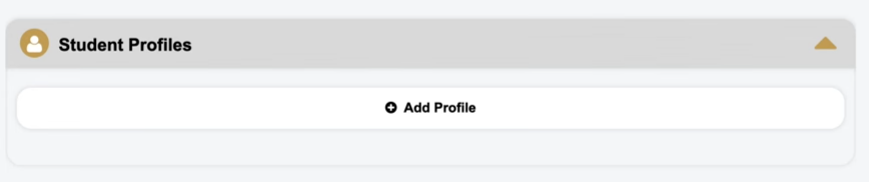
- Enter your child’s:
- First and last name
- Date of birth
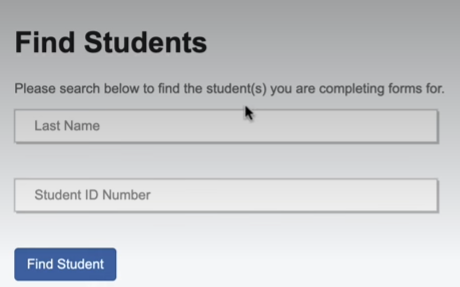
- Click “Save” to connect your child to your account.
- You will receive a “success” notification. You can proceed to complete your forms or find another student to add to your account.

How to Complete Required Forms
- After adding your student go to the “Forms” section.
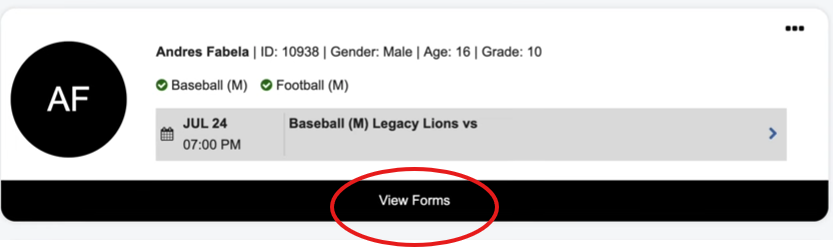
- You will see a message saying you have forms to complete. Click on each form to complete the required forms.
- DIAA Eligibility Form – complete first
- DIAA Acknowledgement Form
- Pre-Participation Consent Form
- Emergency Contact Card
- Medical Card Upload Form– Upload a copy of the Student Athlete Medical Card, completed and signed by a physician. You can choose to upload a jpeg or pdf file.
- The 3-page form can be downloaded in the Forms “Downloads” section within your RankOne account. Only page 3 needs to be uploaded. Pages 1 & 2 remain with your PCP’s office.
- Please Note: In addition to DIAA-required forms, individual schools or districts may require parents to complete additional forms listed in your dashboard.
- Double-check that each form is submitted and shows as “Complete” (green) or “Pending Approval.”
- Once all required forms are submitted and approved by an administrator, your student’s forms will show all green and be eligible to participate in athletics at your school.
- Parents will be required to complete these forms each school year.
- More information about DIAA Physicals can be found here.
- Please contact your school’s Athletic Director if you have questions about required forms.
- Parents can also email support@rankone.com for additional support.
Use the Platform to Stay Informed
It is recommended for parents and guardians to download the RankOne Unified App. Once your student-athlete is placed on a team roster in Rank One, you will then have access to that team's information and communication from the school and coaching staff.
- Download the App on Apple Store Rank One App – App Store
- Download the App on Google Play Rank One – Apps on Google Play
Once your account is set up and your required forms are submitted, you can use the RankOne App to:
- Receive alerts or updates from your child's coaches or athletic staff.
- Monitor form statuses and eligibility.
- Receive messages from your child's athletic trainer, if applicable.
- View practice or game schedules, if applicable.

Coaches Instructions
How to Access Your Coach Account:
- Access the Portal: Visit the Rank One Login Page or use the Rank One app.
- Select Role: Select the “Employee School Login” option in the top menu bar
- Login Credentials: Once your school’s Athletic Director adds you to the system as a coach, your account will be automatically created. You will receive an email from RankOne with your school-issued username and password—please use these credentials to log in. Do NOT create an account on your own.
- Once logged in, scroll down to the bottom left Quick Links sidebar. Click on “Change My Password.”
- Log in to your Rank One account.
- Scroll down to the Compliance Status section in your dashboard. From there, you will see a CPR Certificate and a Concussion Training Certificate form that require you to upload a document. Click on the form to open it.
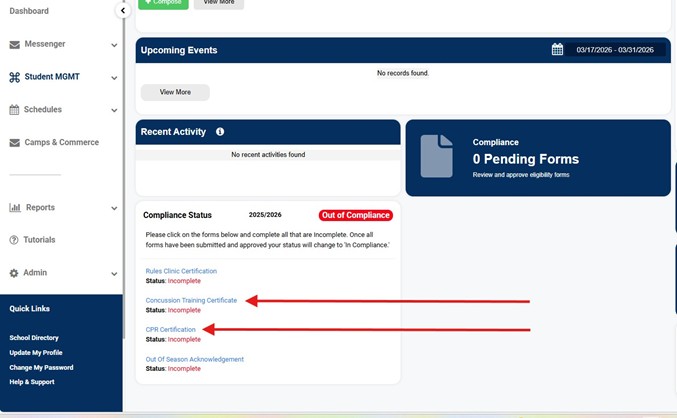
- To upload a certificate, fill in the Employee Name at the top & choose how you would like to upload the certificate.
- You have two options: a PDF or a Picture.
- If using the app, you can choose to upload a screenshot from your phone.
- In this example, I will choose the PDF option & select my certificate from my device.

- After selecting your document to upload, scroll down. Type your name & use your mouse to electronically sign your
- Check the “I Agree” box and click Submit at the bottom left.
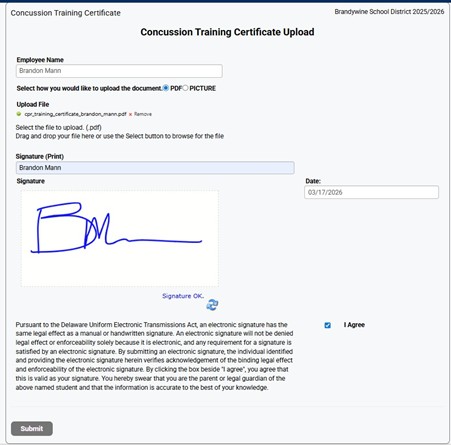
A district administrator will approve your certificate once it has been submitted. For any questions, please contact: support@rankone.com
In addition to uploading your certifications, all coaches will be required to complete the DIAA Out of Season Acknowledgement form.
- Head Coaches are required to attend and complete the DIAA Rules Clinic.
- Coaches who attend an in-person clinic and sign in will have their certification recorded in RankOne by a DIAA staff member
- If unable to attend, coaches must receive an exemption from the DIAA office
- Exempt coaches must complete the NFHS Rules Clinic through NFHS Learn
- Certification must be uploaded manually by following the steps outlined in the section above
Use the Platform to Stay Informed
It is recommended for coaches to download the RankOne Unified App.
- Download the App on Apple Store Rank One App – App Store
- Download the App on Google Play Rank One – Apps on Google Play
Coaches can use the RankOne App to:
- Access rosters.
- Receive communication and alerts from your athletic director.
- Send communication or alerts to your athletes and parents.
- Receive messages from the school’s athletic trainer, if applicable.
- View practice or game schedules, if applicable.
How to Access Your Coach Account:
- Access the Portal: Visit the Rank One Login Page or use the Rank One app.
- Select Role: Select the “Employee School Login” option in the top menu bar
- Login Credentials: Once your school’s Athletic Director adds you to the system as a coach, your account will be automatically created. You will receive an email from RankOne with your school-issued username and password—please use these credentials to log in. Do NOT create an account on your own.
- Once logged in, scroll down to the bottom left Quick Links sidebar. Click on “Change My Password.”
- Log in to your Rank One account.
- Scroll down to the Compliance Status section in your dashboard. From there, you will see a CPR Certificate and a Concussion Training Certificate form that require you to upload a document. Click on the form to open it.
- To upload a certificate, fill in the Employee Name at the top & choose how you would like to upload the certificate.
- You have two options: a PDF or a Picture.
- If using the app, you can choose to upload a screenshot from your phone.
- In this example, I will choose the PDF option & select my certificate from my device.
- After selecting your document to upload, scroll down. Type your name & use your mouse to electronically sign your
- Check the “I Agree” box and click Submit at the bottom left.
A district administrator will approve your certificate once it has been submitted. For any questions, please contact: support@rankone.com
In addition to uploading your certifications, all coaches will be required to complete the DIAA Out of Season Acknowledgement form.
- Head Coaches are required to attend and complete the DIAA Rules Clinic.
- Coaches who attend an in-person clinic and sign in will have their certification recorded in RankOne by a DIAA staff member
- If unable to attend, coaches must receive an exemption from the DIAA office
- Exempt coaches must complete the NFHS Rules Clinic through NFHS Learn
- Certification must be uploaded manually by following the steps outlined in the section above
Use the Platform to Stay Informed
It is recommended for coaches to download the RankOne Unified App.
- Download the App on Apple Store Rank One App – App Store
- Download the App on Google Play Rank One – Apps on Google Play
Coaches can use the RankOne App to:
- Access rosters.
- Receive communication and alerts from your athletic director.
- Send communication or alerts to your athletes and parents.
- Receive messages from the school’s athletic trainer, if applicable.
- View practice or game schedules, if applicable.
Coach compliance requirements in RankOne roll over annually on June 1. Beginning June 1, coaches may upload certifications and complete all required compliance forms for the upcoming school year.
Certification Requirements
- CPR, First Aid, and Concussion certifications are valid for two (2) years.
- Coaches do not need to upload these certifications annually unless they have expired.
- RankOne automatically tracks certification expiration dates based on the completion date entered and calculates the two-year validity period.
Annual Requirements
The following items must be completed each year:
- Rules Clinic – Required for Head Coaches only
- Out-of-Season Acknowledgement – Required for all coaches
Assistant Coaches
- Assistant coaches are exempt from the Rules Clinic requirement.
- RankOne will automatically reflect this exemption and will not list the Rules Clinic as a required item for assistant coaches.